Invoice Payments Feature
Vijaya
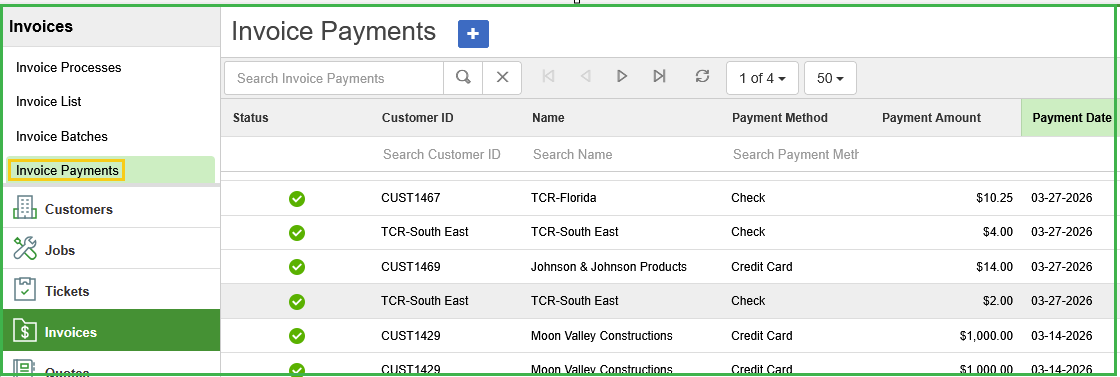
The 'Invoice Payments' option is now available under the Invoices section, allowing payment details to be added, tracked, and managed directly.
Adding a New Invoice Payment
Go to the Invoices menu and select Invoice Payments.
Click the plus (+) icon to open the Invoice Payments form.
Enter the required payment details
Select the invoice(s) under Apply Payment section and click Save.
![]()
Additional Points
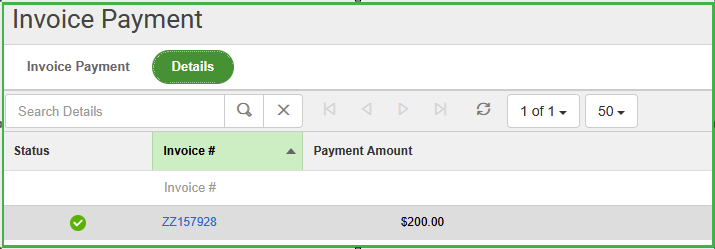
Invoice details can be viewed under the Details tab.
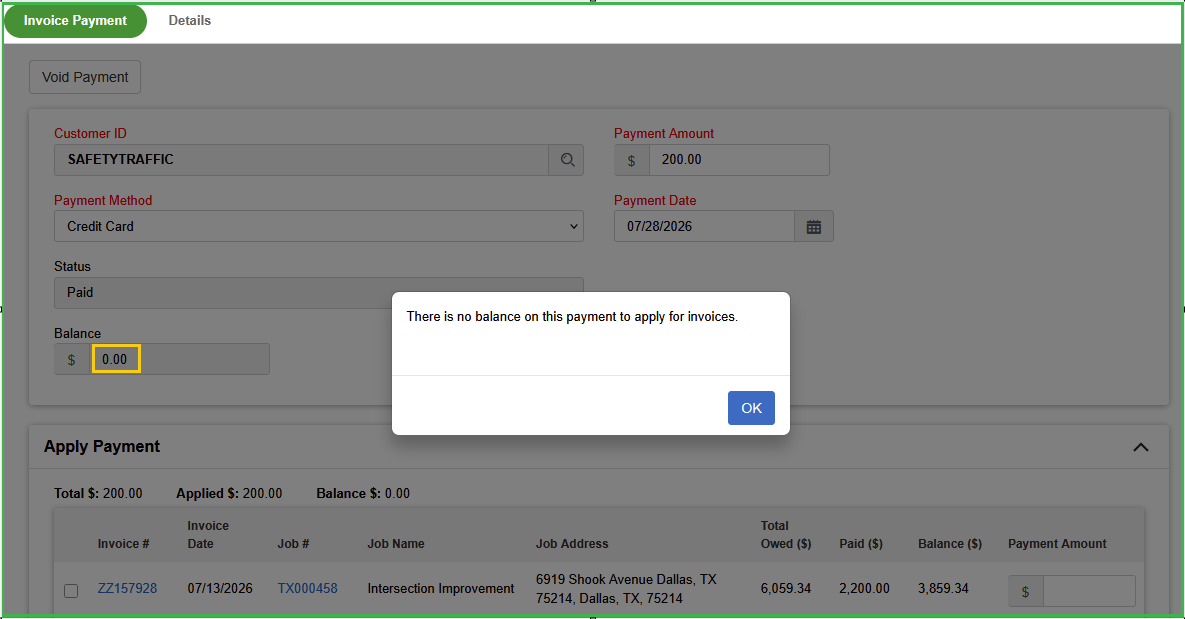
If the balance is zero, no additional invoice can be selected for payment, a pop-up notification will appear to alert you.
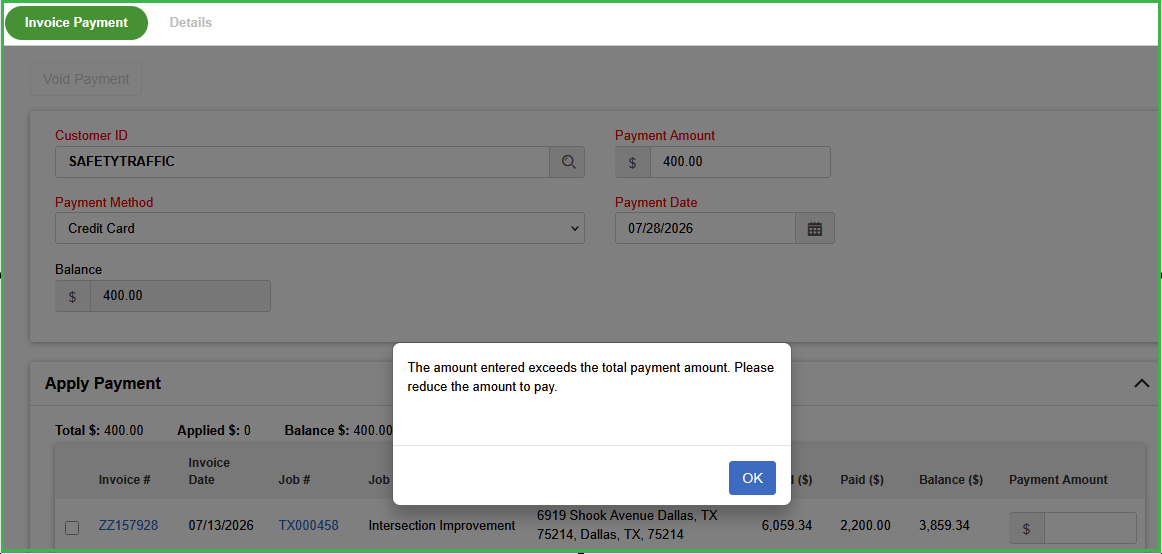
The system will not allow an entered amount to exceed the payment limit.
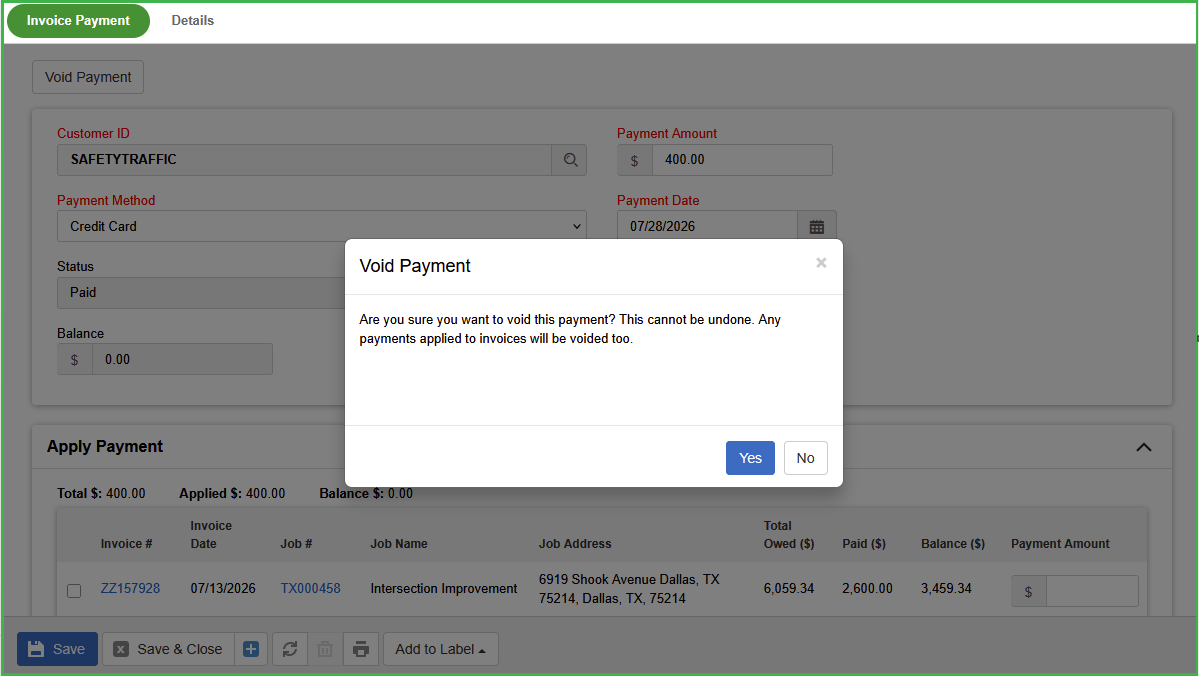
Clicking the 'Void Payment' button successfully voids the payment.
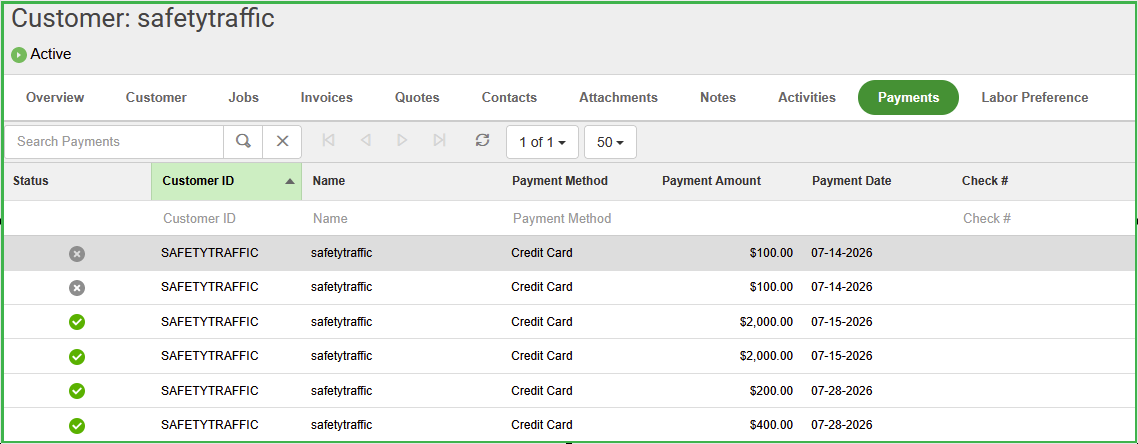
A new 'Invoice Payments' tab is now available on the Customers screen for viewing payment history at the customer level.
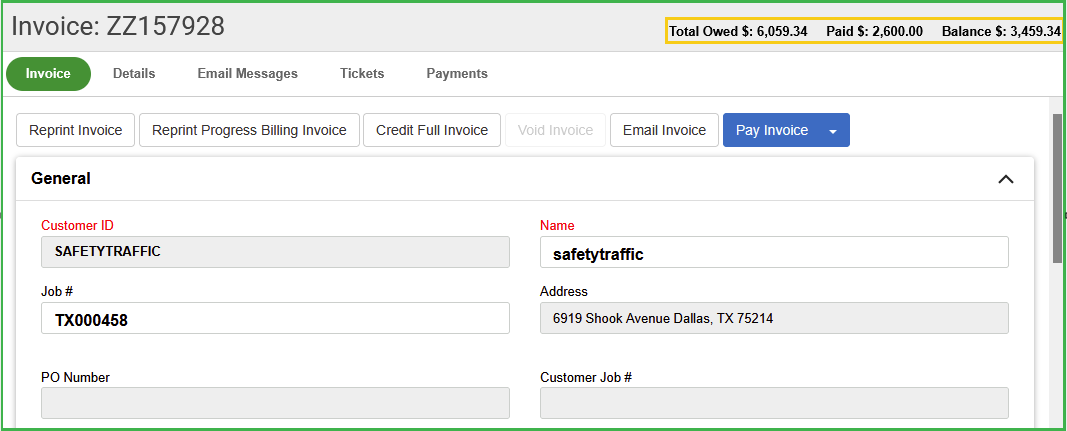
A new 'Payment Details' tab is now available on the Invoice screen, which also displays the balance details.
Invoice details can be viewed under the Details tab.
If the balance is zero, no additional invoice can be selected for payment, a pop-up notification will appear to alert you.
The system will not allow an entered amount to exceed the payment limit.
Clicking the 'Void Payment' button successfully voids the payment.
A new 'Invoice Payments' tab is now available on the Customers screen for viewing payment history at the customer level.
A new 'Payment Details' tab is now available on the Invoice screen, which also displays the balance details.
Invoice Payments from the Invoice Screen: Via the Pay Invoice button.
Navigation Steps
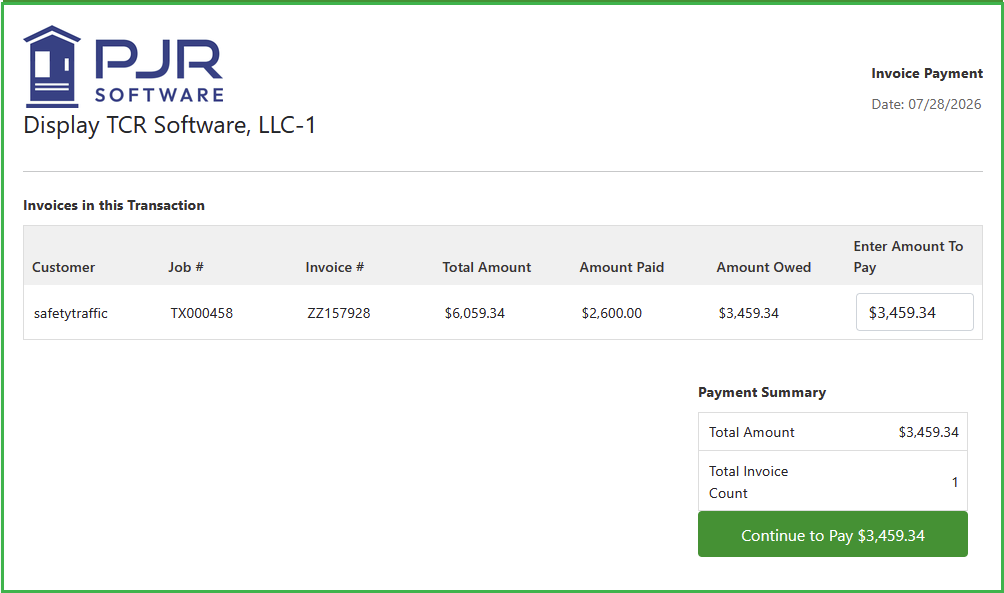
Open the invoice and click the Pay Invoice button to proceed with payment.
This opens the Invoice Payment form and then verify or edit the amount in the Enter Amount To Pay field.
Click Continue to Pay $[amount] to proceed with the payment.
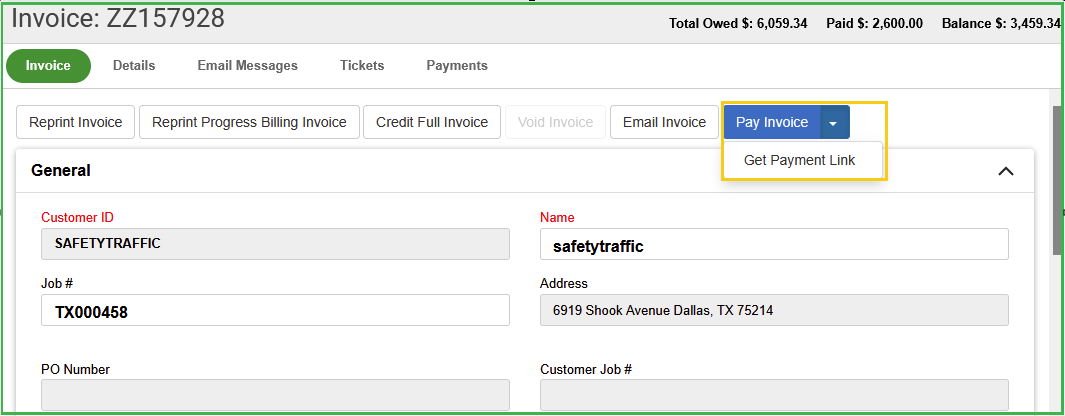
Invoice Payments from the Invoice Screen: via the Get Payment Link option.
Setting Up Payment Link (Company Level)
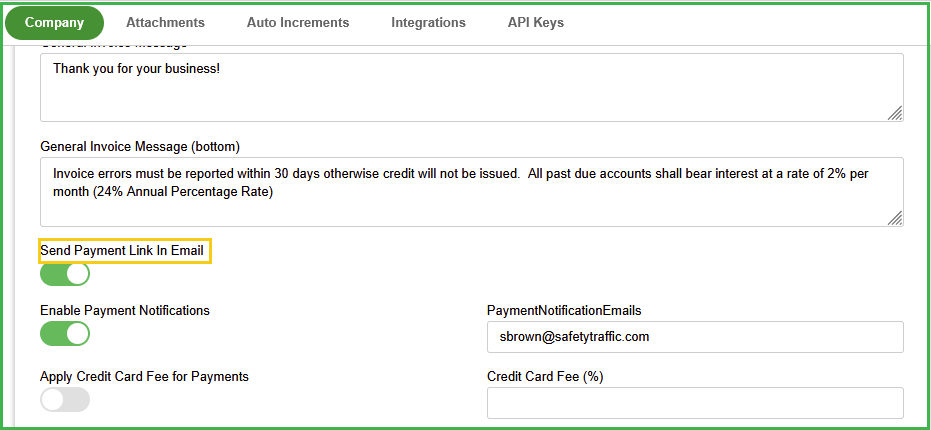
Go to the Company screens and scroll down to Invoice Settings section
Locate the "Send Payment Link In Email" toggle and turn it On.
Sending Payment Link from Invoice Screen
Open the relevant invoice from the Invoice screen.
Review the Total Owed, Paid, and Balance amounts at the top.
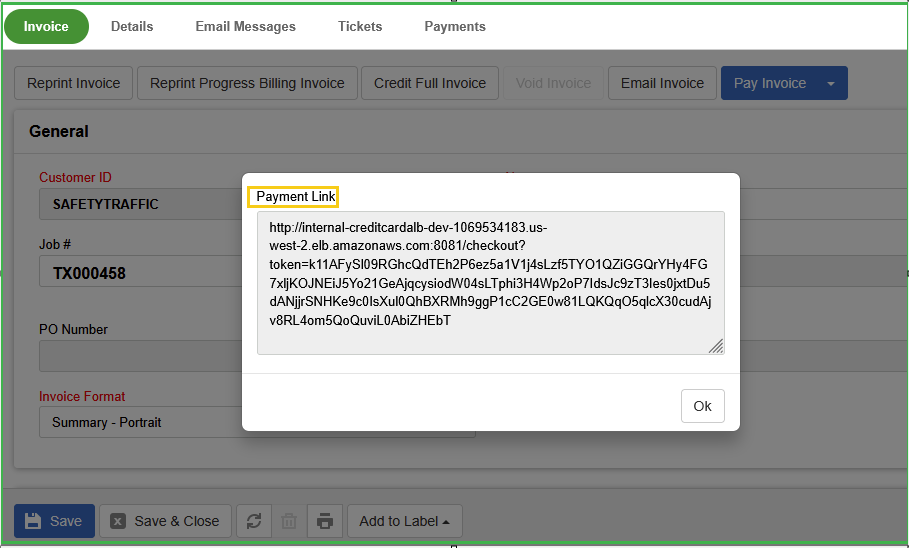
Click the Pay Invoice dropdown button.
Select "Get Payment Link" from the dropdown menu.
The system will generate and send the payment link based on the settings configured at the company level.
Have more questions?
Submit a request

0 Comments