
If you doing any striping you will want to setup striping items. These are similar to line items / sale items but allow you to enter in a unit of measure that will print on the tickets. And when creating a striping ticket, only these items are available for you to select.
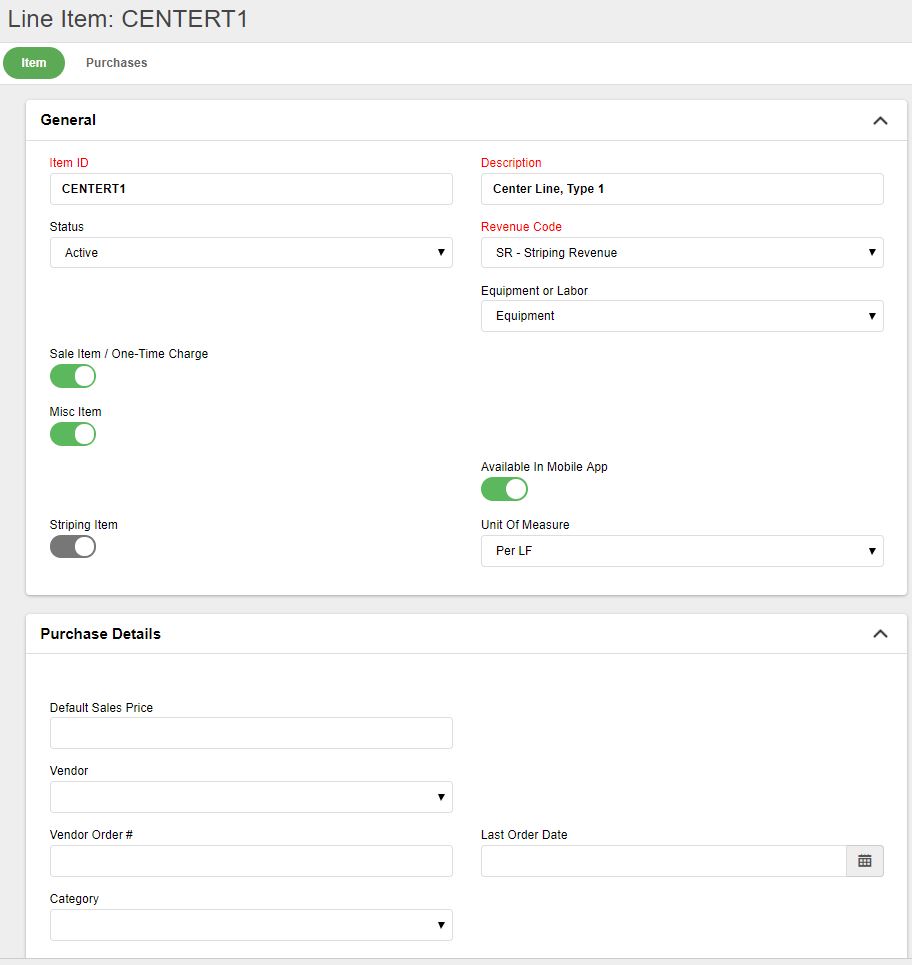
Item ID: You must enter a unique Item ID.
Description: Enter a description that best describes the striping item. This will be the default on the Price List and therefore the Invoice. You will be able to change it on the Price List if necessary.
Status: Since you cannot delete items that have been used on a ticket, if you have an item that you no longer use or carry, simply change the status to Inactive. This will prevent the item from being added to any new tickets.
Revenue Code: This refers to the revenue code set up in the Chart of Accounts and is required for every line item you setup. Every line item must be associated with a revenue account so that when invoices are exported they are properly applied to your accounting software’s G/L. Each item can have only one revenue code associated with it. Some customers will have a special Striping revenue account.
Equipment or Labor: Every item will default to Equipment. Even though striping is not really equipment, you need to select equipment and one-time charge so it bills correctly. All labor items (including non-striping labor items) will be available on striping tickets, so there is no need to setup special striping labor but you can.
Sale Item: Normally all striping items are checked as one time charges.
Misc. Item: Check this box if you have certain items that have a varying price and/or description, so you can make changes on the ticket
Purchase Details - optional:
Default Sales Price: If you add a sale item to a ticket and it is not on the price list for the job, it will default to this default sales price.
Vendor: This is the vendor who you normally by this item from.
Vendor Order#: The vendor’s order number for this item.
Category: Categorize the item so that it will be grouped on the report properly.
0 Comments