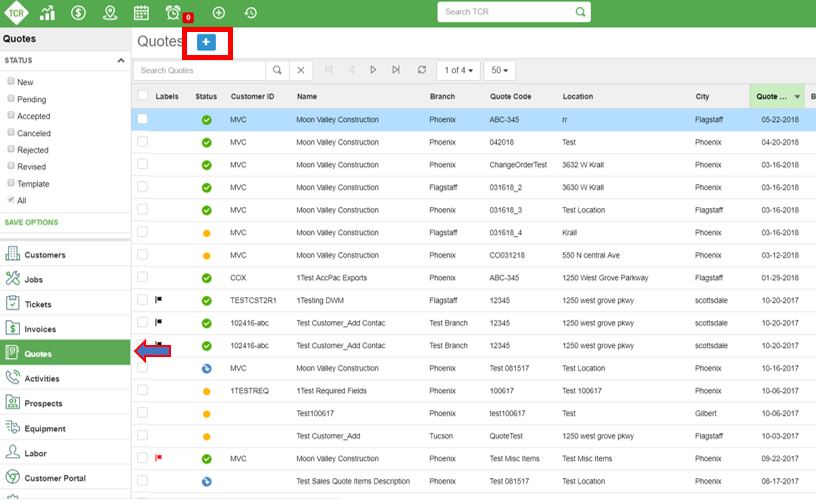
Click on the Quotes button in the side Menu of TCR Main Screen
Click on the “+” symbol beside Quotes.
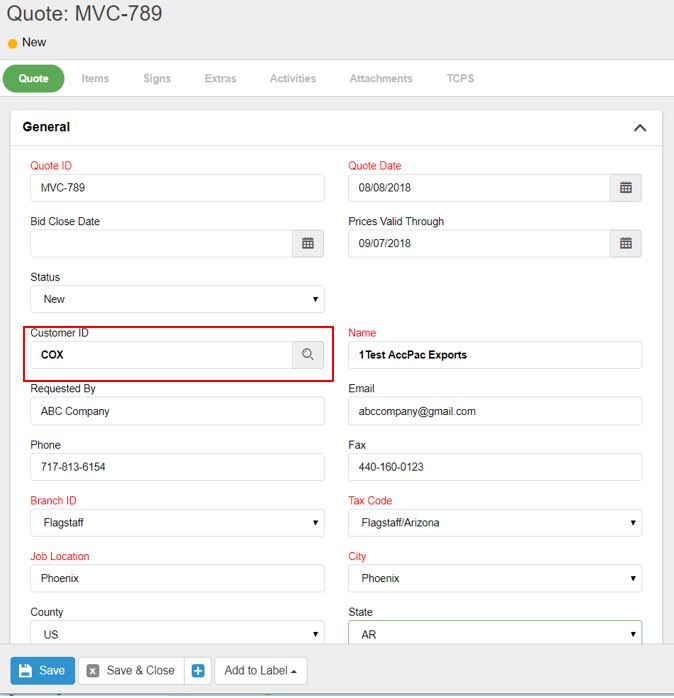
Fill in the required fields on Quote screen and Click on Save button.
Make sure you add the Customer ID before saving the quote.
Adding Items to a Quote
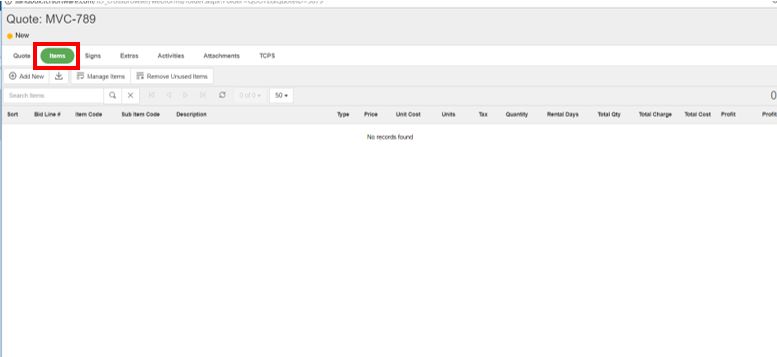
After creating a Quote, Click on Items button beside Quote
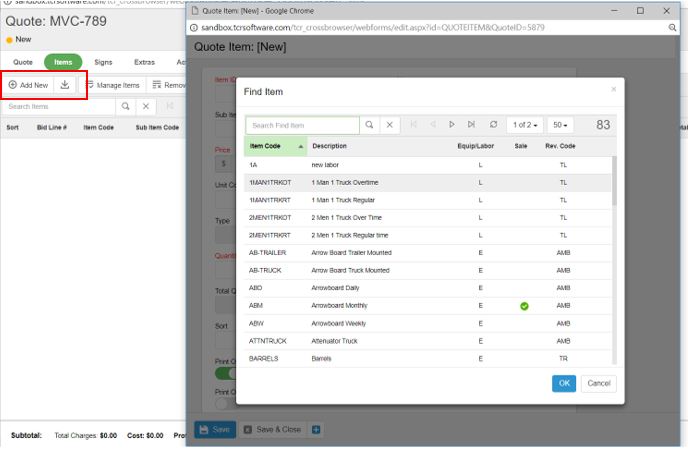
Click on Add New button on Items screen.
Add the Item from the list and enter the quantity and Click on Save button.
How to convert a Quote to a Job?
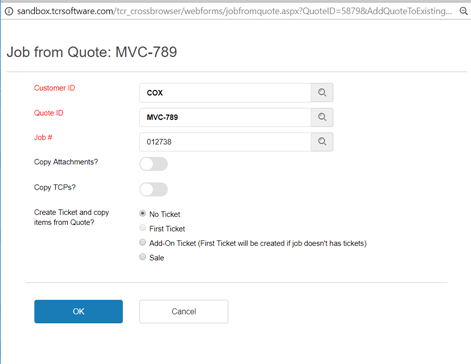
Click on the “Create Job from Quote” button on the Quote screen.
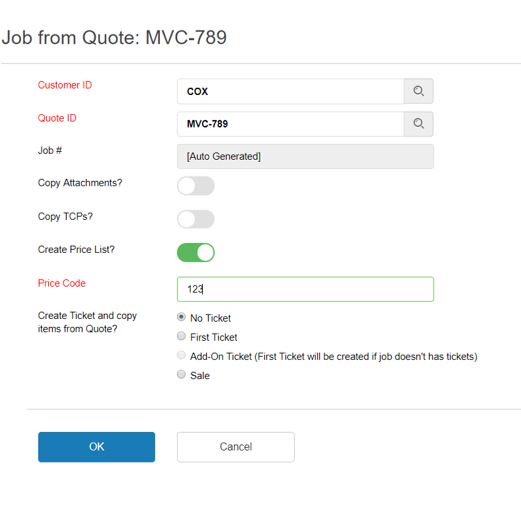
Make sure you select the Customer ID before clicking Save button if you have not selected it while creating the Quote. (Job can’t be created without the Customer ID being selected)
Enable create Price List button and enter the Price Code --> Click OK.
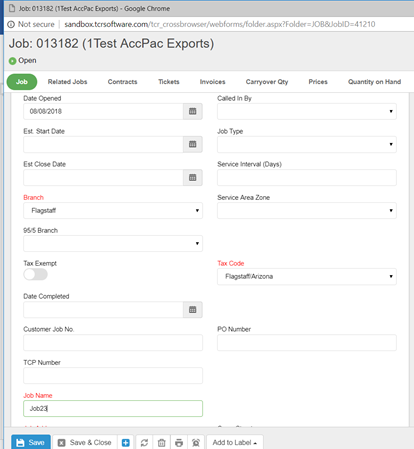
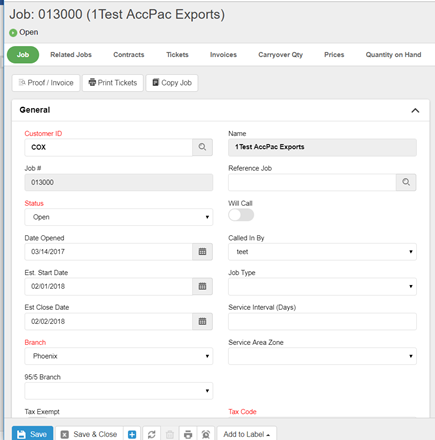
Job screen opens up. Make sure you enter the Job name.
Click on Save button.
How to add Quote to an existing Job?
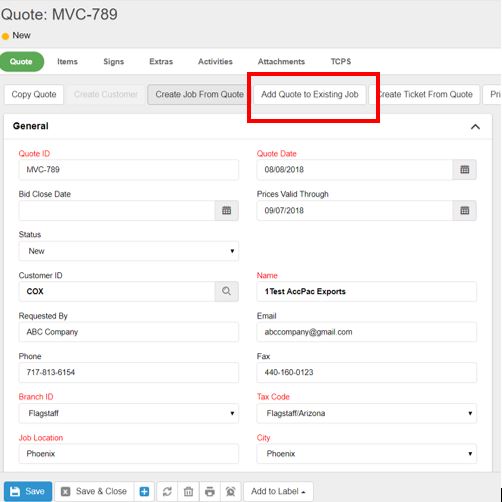
Click on the “Add Quote to Existing Job” button on the Quote screen.
Make sure you select the Customer ID before clicking Save button if you haven’t added it while creating the quote. (Job can’t be created without the Customer ID being selected)
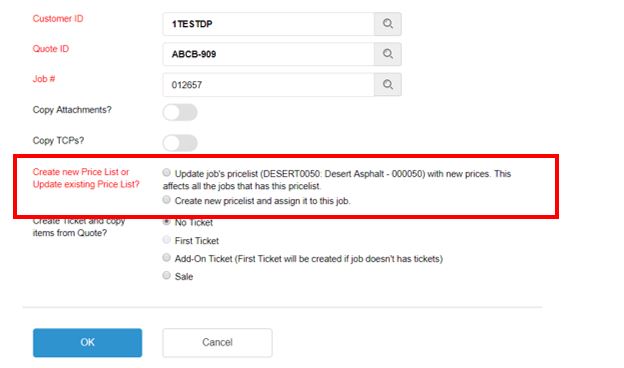
Select Job # and Click OK
Sometimes, if the prices on selected quote are different from prices on selected Job, you either update the pricelist or create a new price list and assign it to the job.
Job screen opens up. Make sure you enter the Job name.

 Click on Add New button on Items screen.
 Add the Item from the list and enter the quantity and Click on Save button.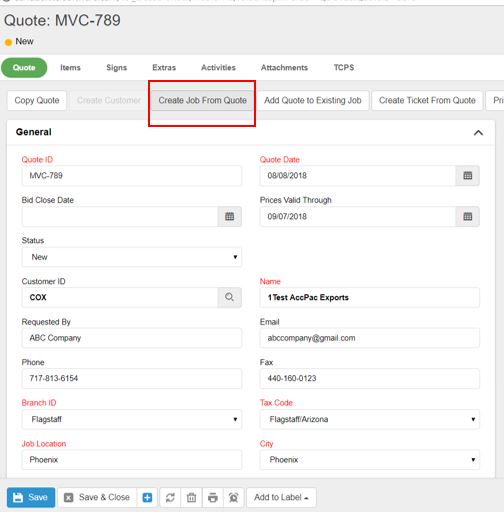
0 Comments