
We have added routing feature, it will help the drivers to get the entire route map from one ticket area to multiple tickets areas. They can access it from the TCR mobile app.
How to add/edit 'Route Map' in TCR Main?
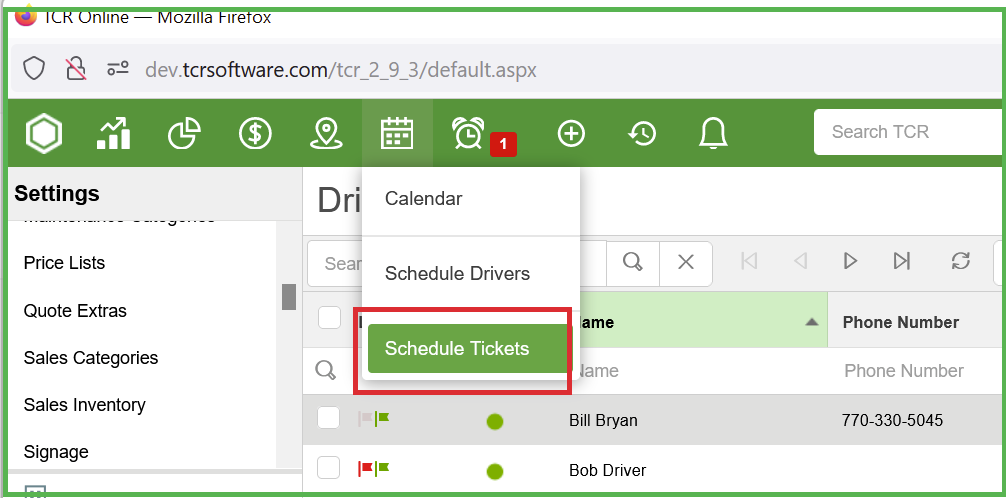
Step1: Open TCR Main and then go to Scheduled Tickets located under Calendar.
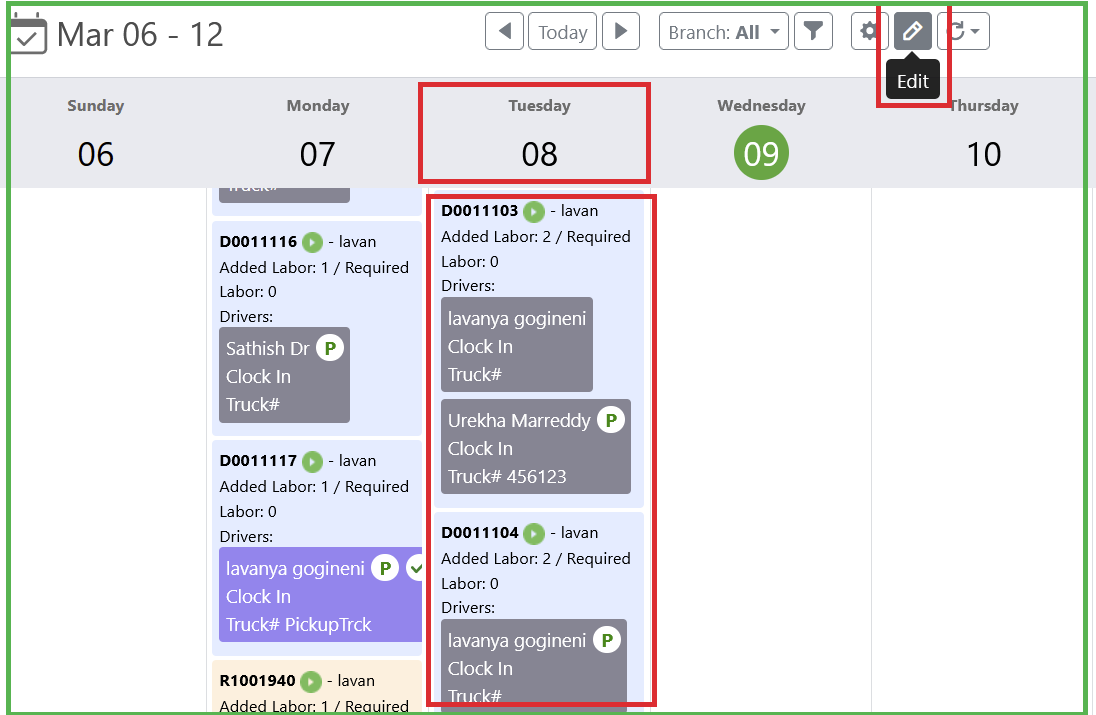
Step2: Click on 'Edit' symbol and then choose multiple tickets from the same day on the calendar.
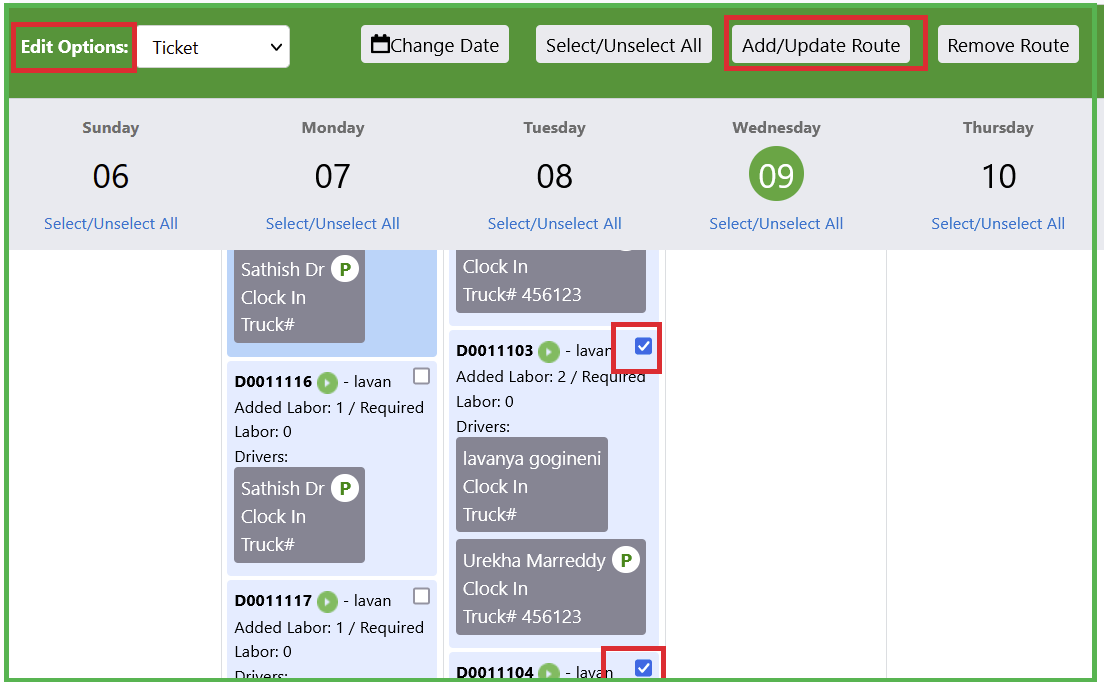
Step3: You can select 'Ticket' under 'Edit Options' drop down and then click on 'Add/Update Route' button
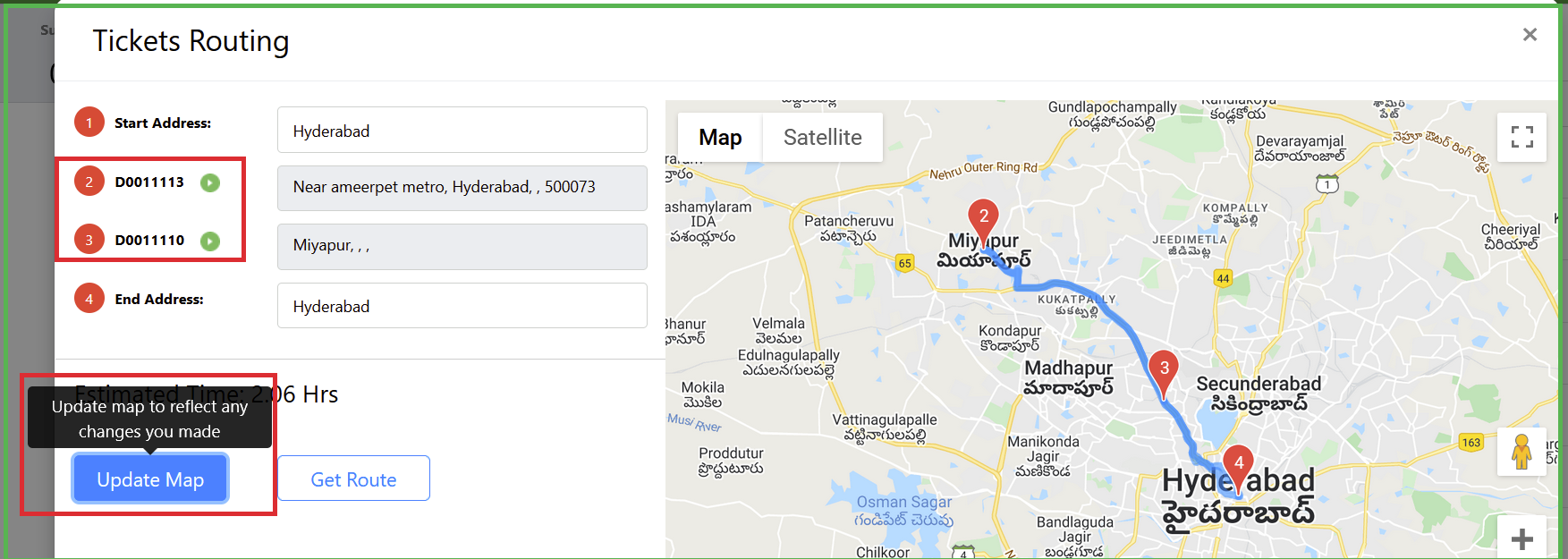
Step4: When you click on 'Add/Update Route', you can see 'Ticket Routing' screen which contains 'start address, tickets addresses and end address'.
Click on 'Get Route' ->It will generate route and then you can click on 'Save Route'. If you want, you can also delete route by clicking on 'Delete Route'. Delete Route deletes the entire route in the map.
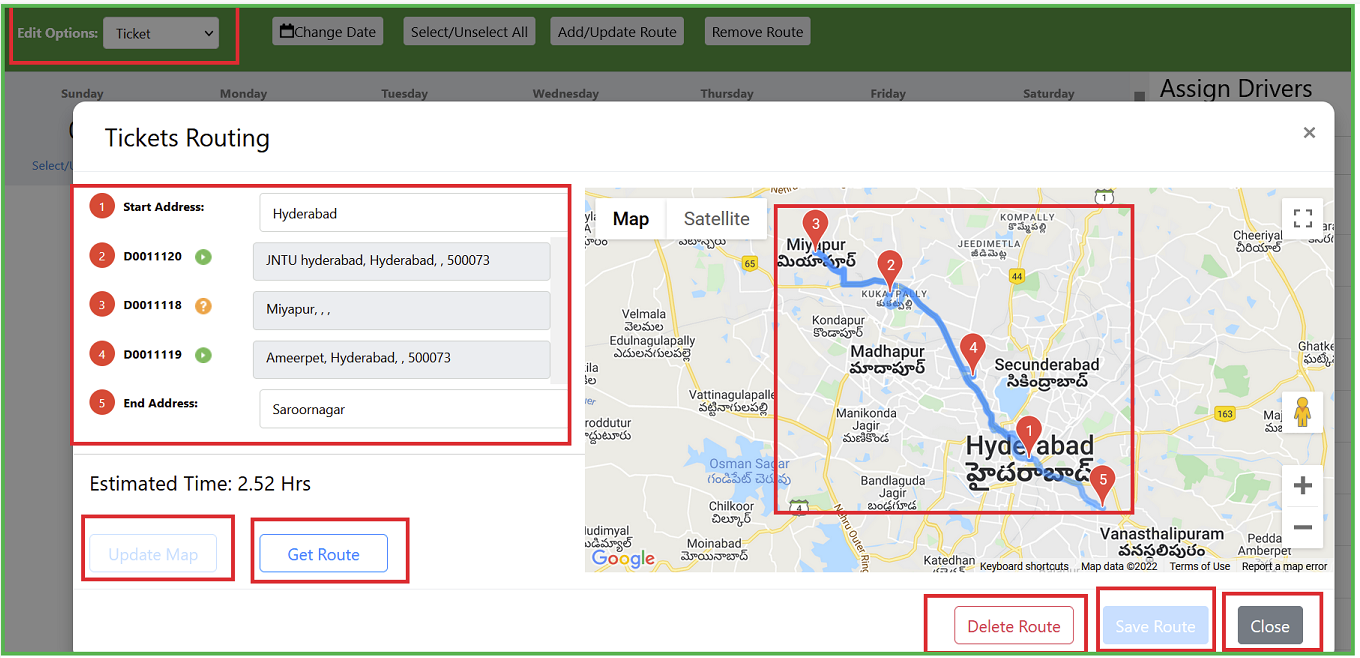
Step5: Update Map: We can update the map by sorting the tickets(by drag-and-drop) and then you would need to click on 'Update Map' button. It's going to update the route map according to the changes that have been made.
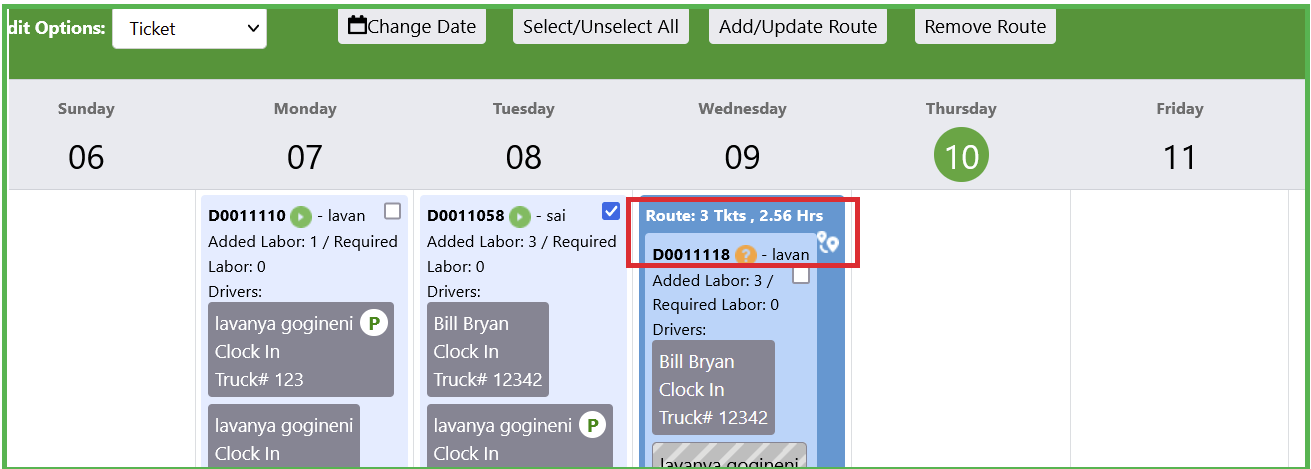
Step6: Once you save the route, all those routed tickets will get highlighted along with a small pin symbol says 'Open Route' and also displays the details like 'total number of tickets and the total time'
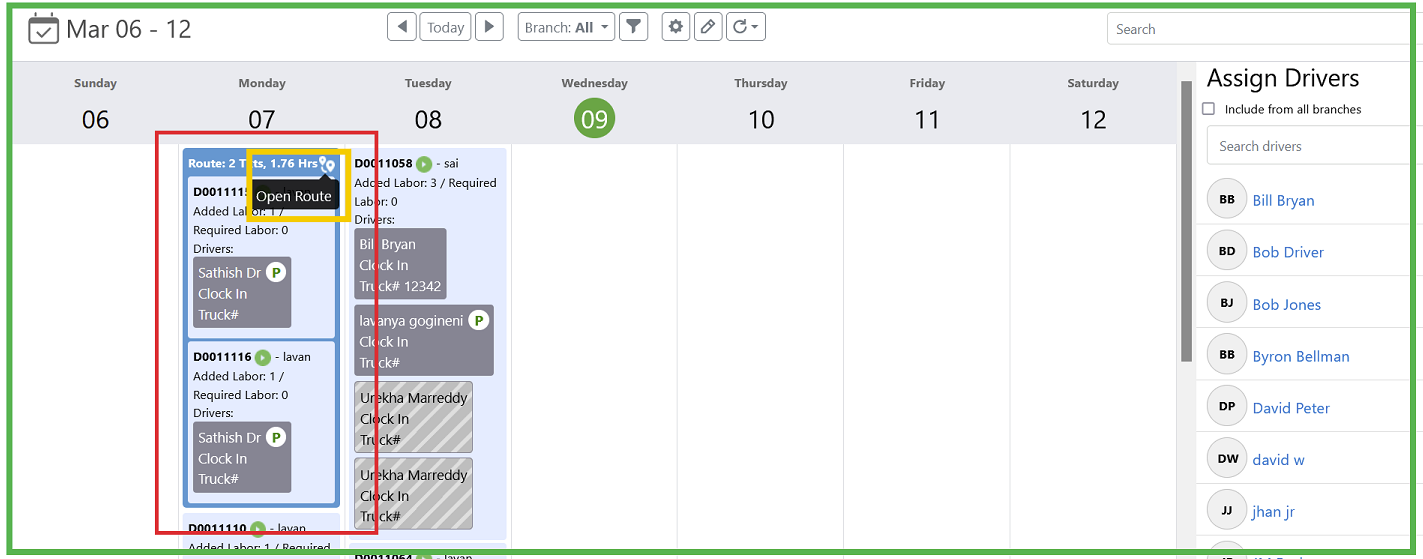
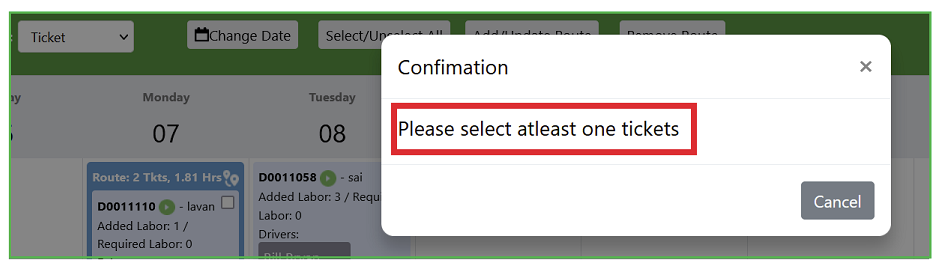
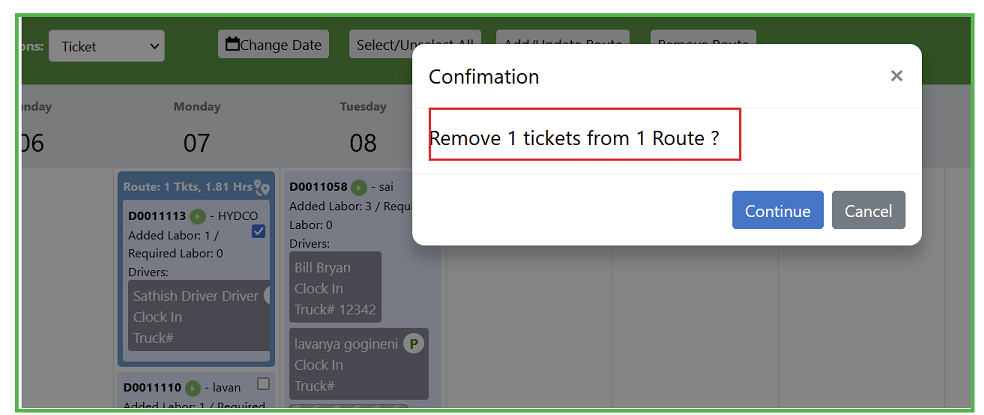
Step7: Remove Route: It will remove the selected ticket from the route map. When you click on 'Remove Route',
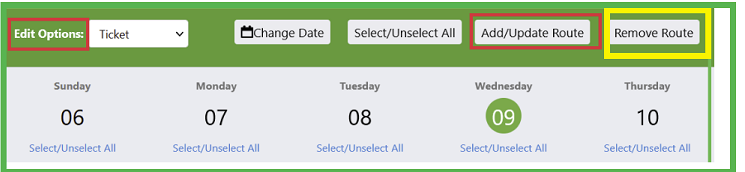
It will prompt you to choose at least one ticket.
If you choose one ticket, it will remove that ticket from the route.
How to access 'Route Map' in TCR Mobile?
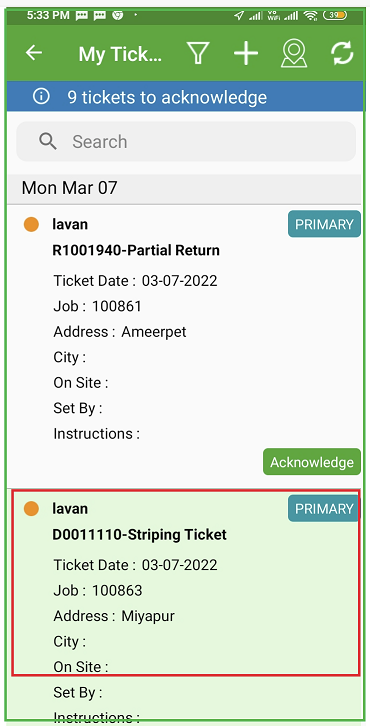
Step1: We can access the route from mobile app by clicking on 'Map' symbol located on the top right corner of my tickets screen.
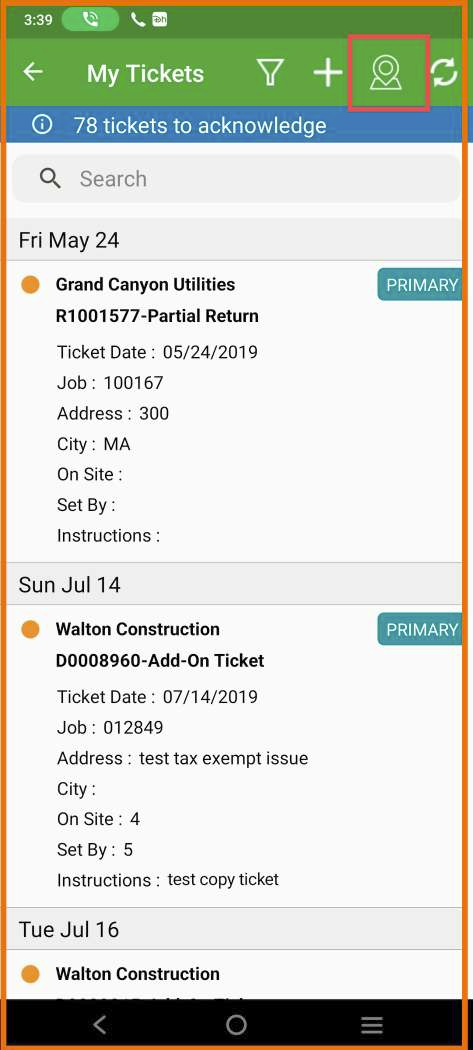
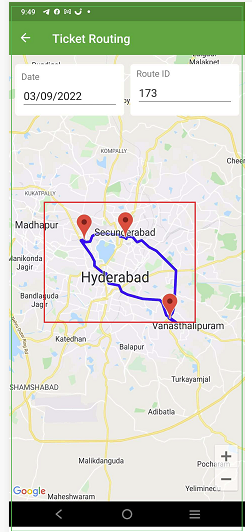
Step2: When you go to 'My tickets' in the mobile app, it will highlight the first ticket from the route, so the driver can start with that ticket.
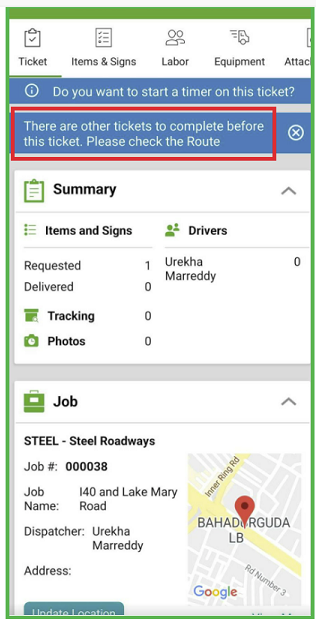
Step3: If the driver accidentally skips the ticket order from the route, it will show him a pop up message says 'There are other tickets to complete before this ticket. Please check the Route'.
For instance, if the driver skips first ticket from the route and then selects the 2nd ticket, it will show him a pop up message.
0 Comments